
Structure Editor
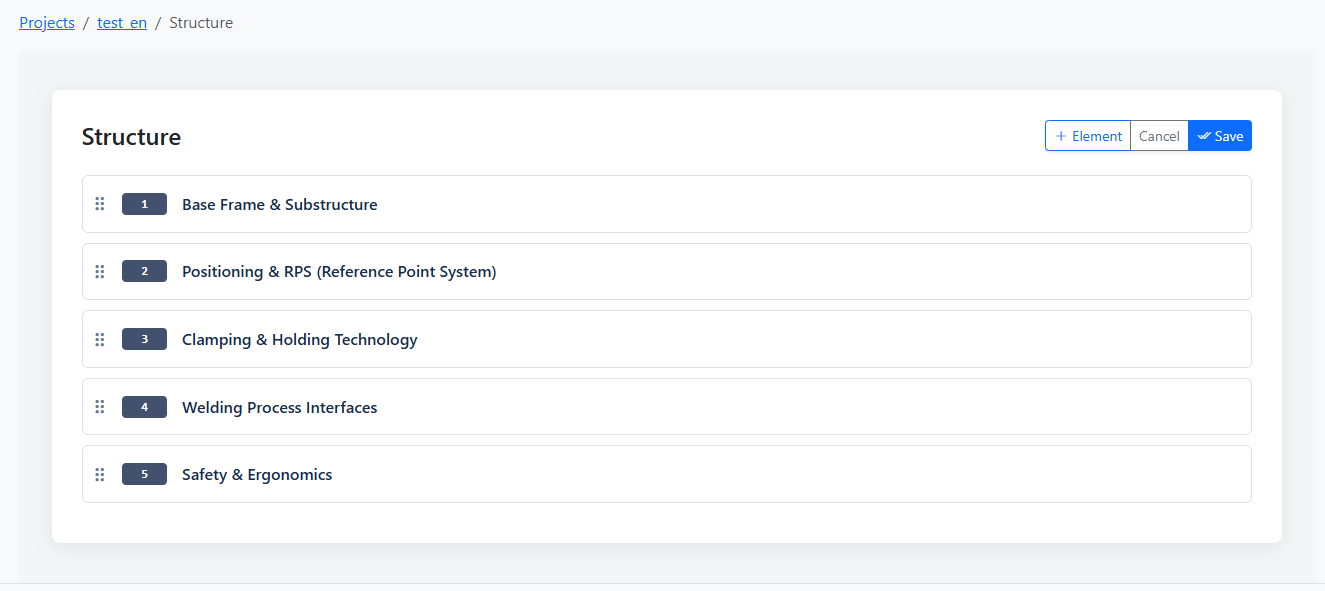
ProjectsThe Structure Editor allows you to organize your projects into logical sections. Instead of a long, unordered list of requirements, structuring enables a hierarchical division (e.g., by assembly groups, disciplines, or regulatory chapters), ensuring maximum clarity.

The User Interface
The editor provides an intuitive interface to create new structural elements and move or edit existing ones. You can access it via the project detail view under the "Structure" tab.
Core Features
1. Creating Structure Elements
A structure element consists of a Name and a Structure Code (e.g., "1.1" or "A-1"). The code is used for automatic sorting in the project list and during export.
2. Hierarchical Organization
You can nest elements within each other. When creating an element, simply select an existing one as the "Parent." This creates subchapters that break down complex projects into logical units.
3. Assigning Requirements
Once a structure is defined, you can assign a structure element to each requirement. In the project overview, requirements will then be automatically grouped under their respective headings. You can do this in two ways: via the dropdown on the requirement itself, or by dragging the requirement using its handle icon (⠿) directly in the requirements list into another chapter or to a different position within the same chapter.
4. Filtering and Overview
In the project list, you can filter the view by specific structure elements. This makes it easier to work on specific technical areas without losing focus due to irrelevant requirements.
Best Practices
- Consistent Codes: Use a uniform numbering scheme (e.g., 1, 1.1, 1.1.1) to keep the sorting logical.
- Limit Depth: Try to limit the depth of the hierarchy to 3 or 4 levels to keep navigation simple and efficient.