
Working with the Network Editor
ProjectsThe Network Editor is the central tool in ETRM for graphically representing complex dependencies between requirements. It complements the classic list view with an interactive graph component.
1. Accessing the Network Editor
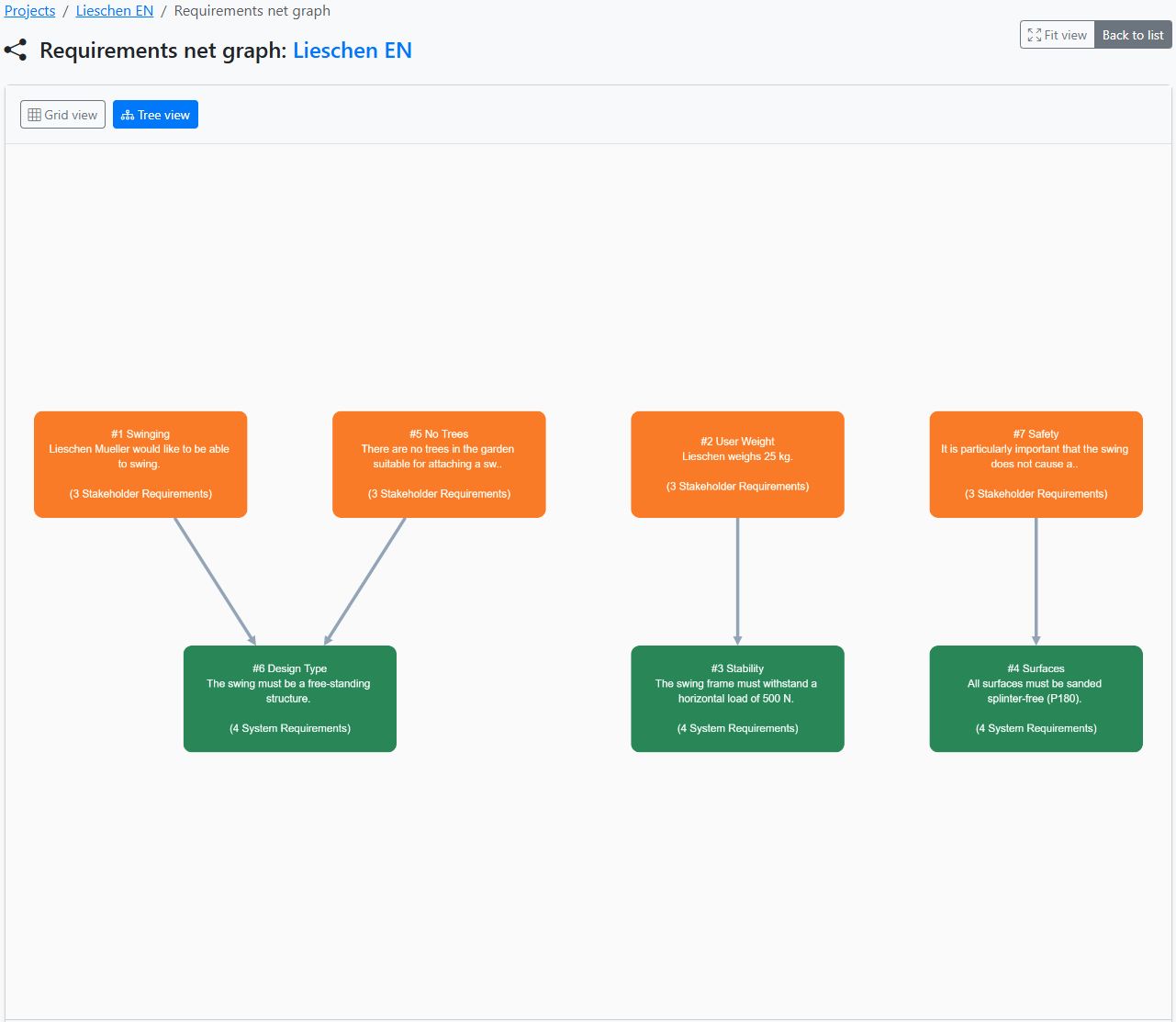
You can find the Network Editor within a project via the "Network" tab in the main navigation. The view automatically loads all requirements of the project and their existing links.
2. Navigation and View
To maintain an overview even in large projects, the following control elements are available:
- Zoom & Move: Use the mouse wheel to zoom and drag the workspace with the left mouse button pressed to move the view.
- Fit to Screen: Clicking the "Fit" button centers the entire graph and scales it so that all requirements are visible.
- Layout Options: Grid View: Arranges requirements in a compact grid. Tree Structure: Sorts requirements hierarchically according to their parent-child relationship (ideal for traceability analysis).
3. Linking Requirements
If you have edit rights in the project, you can edit relationships directly in the graph:
- First, click on the Parent Requirement.
- Then, click on the Child Requirement.
The system immediately creates the new relationship and updates the traceability arrows in the list view.
The colors of the requirements change depending on the linking status. Please note: if relationships are deleted in the Network Editor, the color of the affected requirements will only update after reloading the page.
4. Validation and Logic Check
The Network Editor protects the integrity of your data through real-time validation. The following actions are prevented:
- Self-reference: A requirement cannot be its own parent or child element.
- Circular reference: The system recognizes if a planned link would create a logical infinite loop (e.g., A → B → C → A) and blocks this action with a warning.
- Duplicates: If a relationship already exists, it cannot be created a second time.
5. Deleting Relationships
To remove an existing connection: 1. Click directly on the connection line between two requirements. 2. Confirm the security prompt. The requirements themselves remain intact; only the logical link is dissolved.
6. Write Protection
Users with read-only rights will see the notice "Read-only access". In this mode, requirements can be moved and viewed (locally in the browser), but no permanent changes to the relationships can be saved.
7. Filter
By moving the mouse cursor to the right edge of the network diagram, a filter menu will open. You can use this menu in large-scale projects to selectively show requirements, allowing you to then establish the desired links. When you activate a single requirement from the list and click the 'Show related' button, all requirements linked to the selected requirement will be displayed. If you are in a branch with many intermediate levels, you can click the button multiple times; each click will add the 'immediate relatives' of the currently visible requirements.
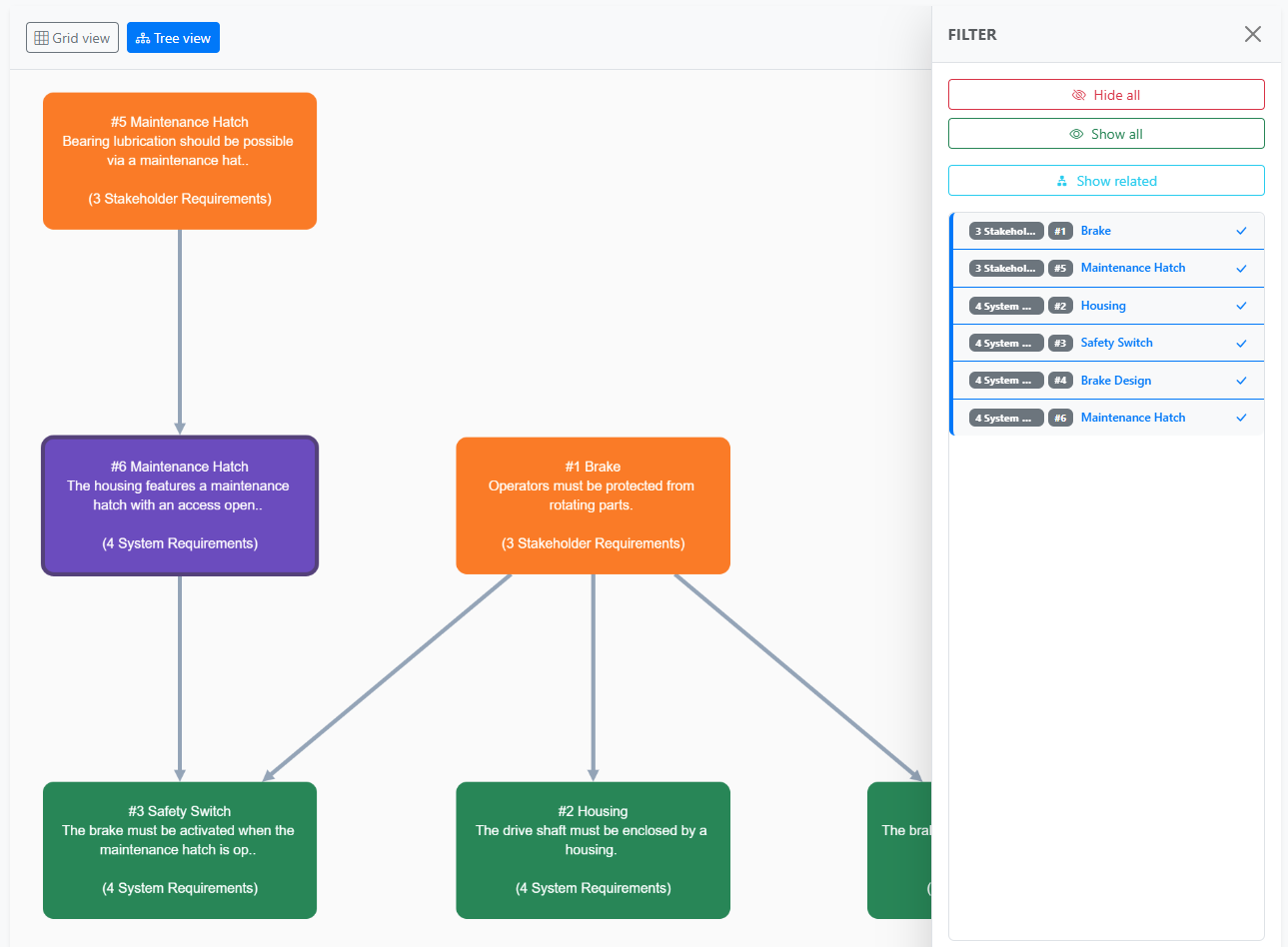
Pro-Tip: Use the Tree Structure to quickly identify "orphans" (requirements without a parent element) at the edge of the graph. In a clean ISO 29148 documentation, every system requirement should have at least one link to a stakeholder requirement.