
Table view, filters and bulk changes
SpecifyThe video is narrated in German; you can switch on subtitles in the player. Playing the video connects to YouTube (Google). More in the privacy policy · Watch on YouTube
The table view shows artifacts as a list with freely selectable columns. It is suited for evaluating, reworking and changing many artifacts at once. You open it project-wide via All artifacts (or Artifacts in the menu bar) or for a single module via Table in the document view. The module table also has the column Pos. with the number in the module.
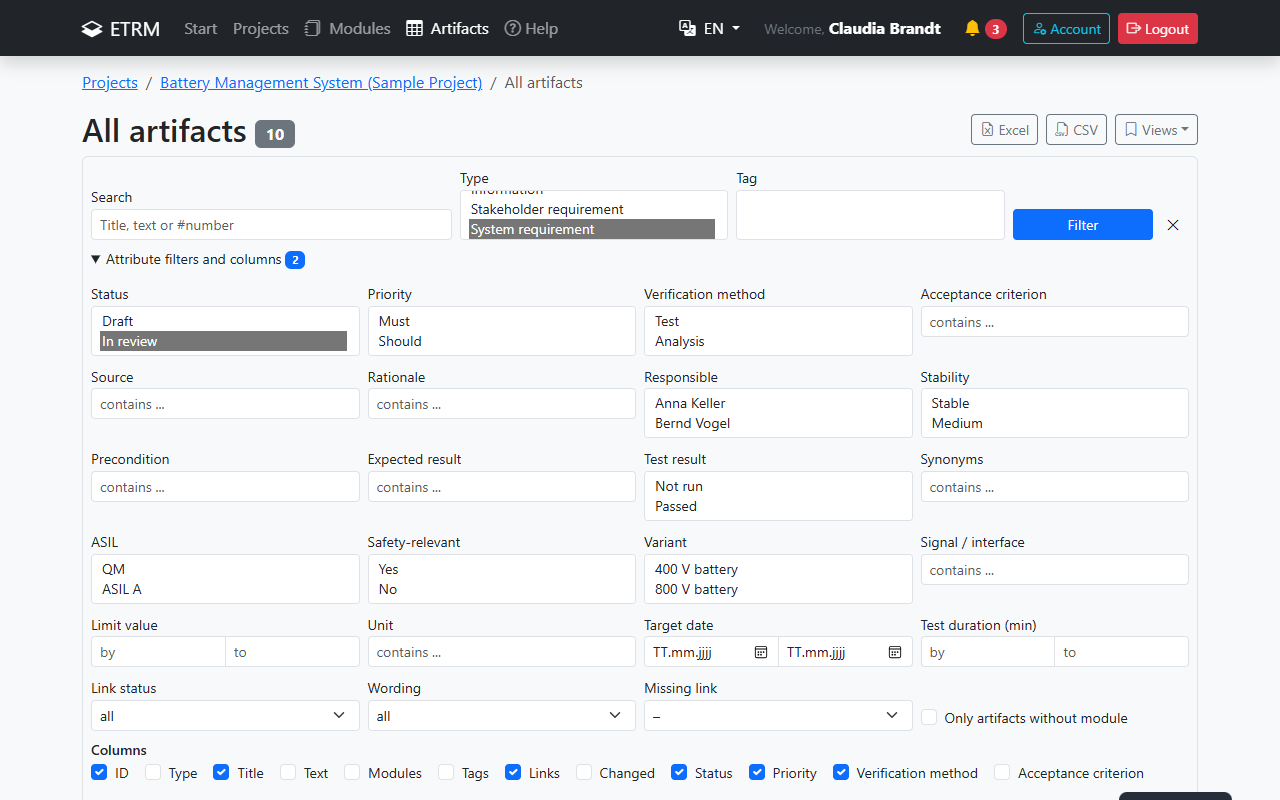
Searching and filtering
- Search looks through title and text;
#12jumps directly to the artifact with this ID. - Type and Tag restrict to certain artifact types or tags.
- Attribute filters: per attribute, for enumerations also “not set”, for numbers and dates with a range from/to.
- Link status: “with suspect link” or “without links (orphaned)”.
- Missing link: shows, for example, all system requirements without “is verified by”. This lets you close gaps in coverage in a targeted way.
- Wording: only artifacts with hints from the wording check.
- Only artifacts without module (project-wide): finds artifacts that were removed from all modules.
Columns and sorting
Under Columns you choose what the table shows: ID, type, title, text, modules, tags, links, date of change and every attribute. A click on a sortable column header (ID, type, title, changed and attributes) sorts, a second click reverses the order.
Saved views
You save a combination of filters, columns and sorting under a name, for example “open safety review points”. From the role EDIT, you can share a view with all members; otherwise it is visible only to you.
Changing many artifacts at once
Select rows with the check boxes on the left and choose at the bottom:
- Set attribute, for example status “approved” for all selected,
- Add tag,
- Move to trash.
Each change is recorded per artifact in the history and makes dependent links suspect as usual.
Export to Excel and CSV
Excel and CSV export exactly the displayed selection with the chosen columns. The file can be edited and imported back via the table import: rows with an ID update the existing artifacts, rows without an ID create new ones.