
The artifact page: attributes, links, history, comments
SpecifyThe video is narrated in German; you can switch on subtitles in the player. Playing the video connects to YouTube (Google). More in the privacy policy · Watch on YouTube
A click on the ID of an artifact (e.g. #8) opens the artifact page. It shows everything that belongs to this artifact and is the place for work that goes beyond the text itself.
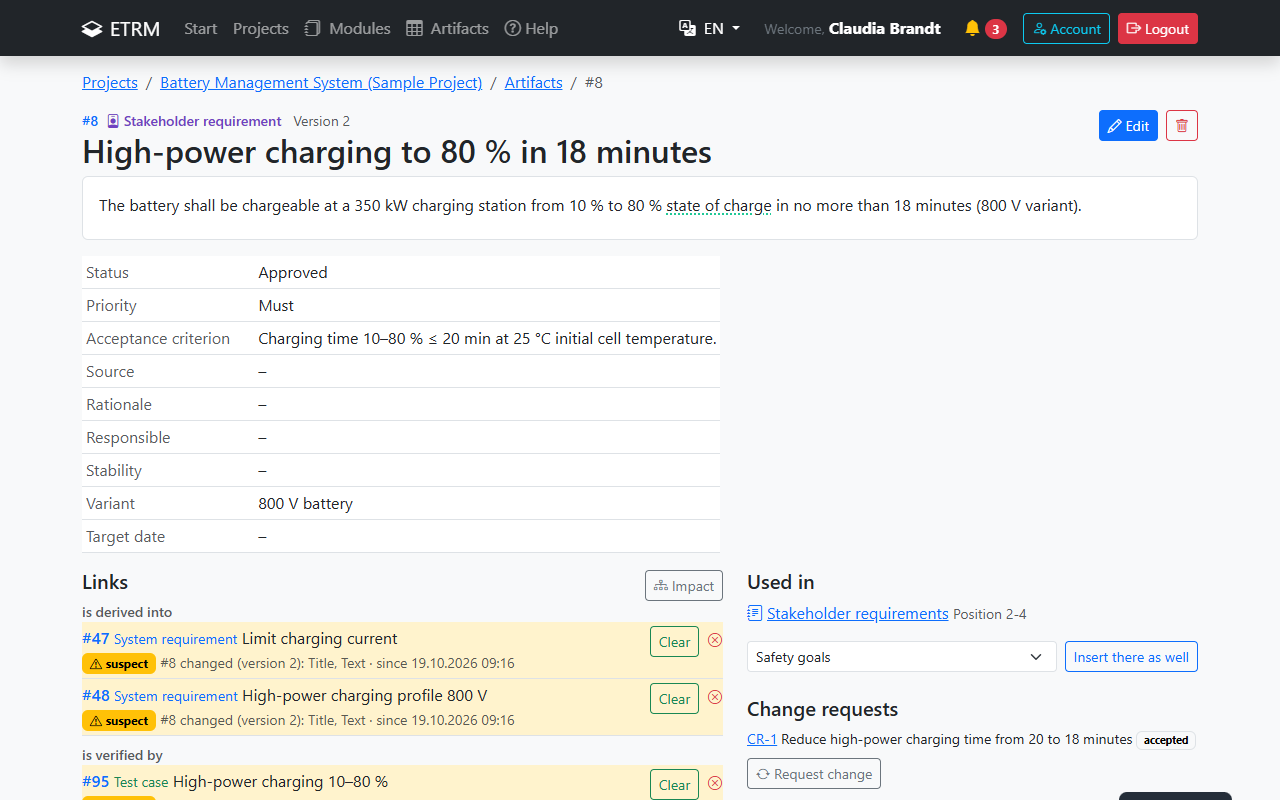
Header: text and attributes
At the top you see type, ID, version, title, text and all attributes of the type. Edit opens the same form as in the document view. Every save increases the version by one.
If the wording check has found something, a yellow box below the text lists the findings with a hint on how to improve the wording.
Links
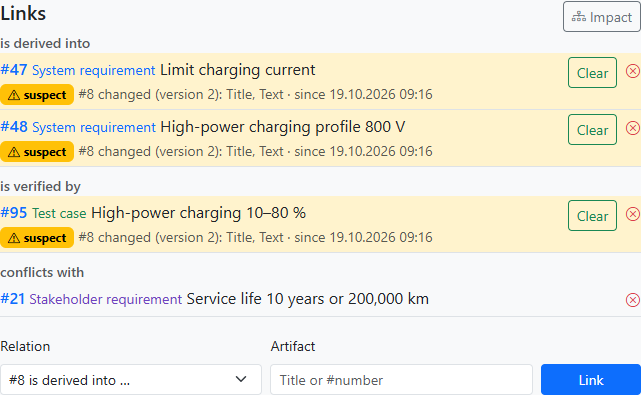
The Links area shows all relations, grouped by link type in reading direction (e.g. “is derived into”, “is verified by”). Suspect links are highlighted in yellow, with reason and time. Here you create new links, clear suspect links and open the impact analysis (Traceability).
Images
You upload images (e.g. sketches, characteristic curves, pin assignments) with a caption. They also appear in the document view and in the Word export.
Comments
Comments are for coordinating exactly this artifact. With @Name you notify members of the group (Comments and notifications). Everyone with the role COMMENT and above may comment.
Used in
The list shows all modules containing the artifact, with its number there. Insert there as well adds it to another module. Artifacts that are in no module (e.g. after “Remove from module”) can be found in the table view with the filter “Only artifacts without module”.
Change requests
Here you see the change requests that concern this artifact and submit a new one with Request change.
Tags
Tags are free markers alongside the configured attributes, for example “customer meeting March” or “clarify with purchasing” (Tags).
History
The history lists every version with time, person and the changed parts: title, text, type, each attribute with old and new value, trash. Below it are the link changes (created, became suspect, cleared, deleted).
Reset restores title, text, type and attributes of an earlier version. This creates a new version; the history remains complete.
Note: If an artifact is in the trash, the page shows a notice with Restore. Editing is not possible then.